How to Digitize Old Family Photo Negatives at Home
To digitize old family photo negatives at home, you'll need a scanner capable of handling negatives, a light source, and editing software. Clean your negatives carefully, scan them using the right settings, then enhance the digital images for the best results.
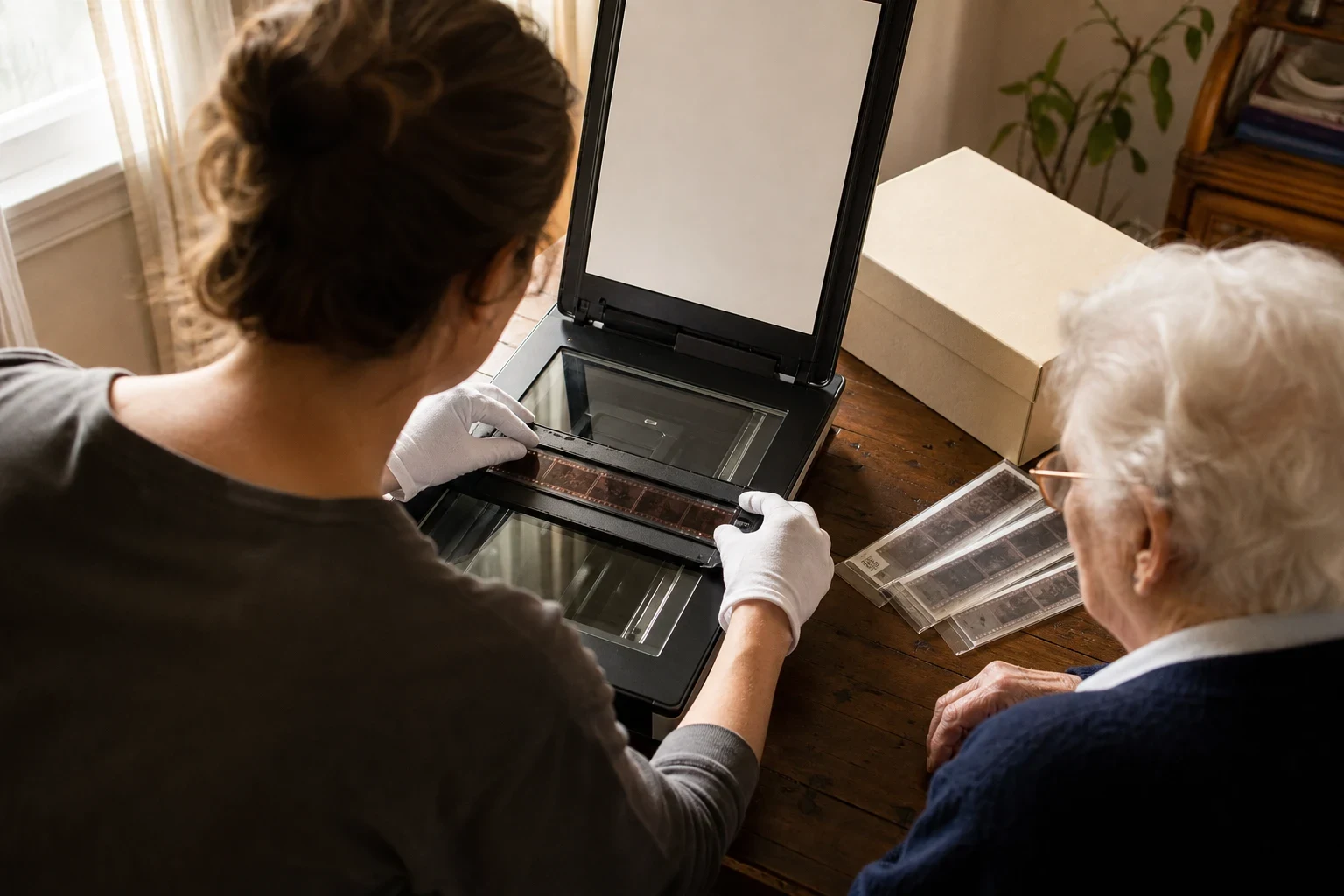
Digitizing your old family photo negatives is a great way to preserve those precious memories for future generations. With the right tools and a bit of patience, you can do it all from the comfort of your home. Here's how to get started.
Gather Your Equipment and Supplies
What you'll need: a scanner, light source, and software
You'll need a scanner that handles film negatives and slides, a consistent light source, and software to edit the scanned images. Some scanners come with built-in light sources designed for negatives.
Choosing the right scanner for negatives and slides
Look for a scanner with a high optical resolution (at least 2400 dpi) that supports transparency scanning. Dedicated film scanners give the best results, but flatbed scanners with a transparency adapter work well too.
Alternative methods if you don't have a scanner
No scanner? Use a DSLR camera with a macro lens to photograph negatives against a light source. There are also services that specialize in digitizing negatives, but doing it at home gives you more control.
Prepare Your Negatives and Slides for Scanning
Cleaning negatives without damaging them
Use a soft, lint-free cloth and a gentle cleaner designed for film to remove dust and fingerprints. Avoid water or household cleaners—they can damage the emulsion.
How to handle fragile or old negatives
Wear cotton gloves to avoid fingerprints, and handle negatives by the edges. If they're brittle, consider consulting a professional before scanning.
Organizing your negatives for efficient scanning
Sort your negatives by date, event, or family member before scanning. This makes file management easier and ensures you don't miss any.
Scan Your Negatives and Slides
Step-by-step guide to scanning negatives
Place the negative in the scanner's film holder, ensuring it's aligned correctly. Use the scanner's software to preview the image and adjust the frame if needed. Scan at the highest resolution your scanner supports.
Adjusting scanner settings for best results
Set the scanner to save images in TIFF or RAW format for top quality. Adjust brightness and contrast if the preview looks too dark or washed out.
Tips for scanning slides
Slides can be scanned like negatives, but they may need different holders or settings. Make sure the slide is clean and dust-free before scanning.
Edit and Enhance Your Digital Images
Basic editing to improve scan quality
Use editing software to crop, rotate, and adjust exposure. Remove any dust or scratches the scanner picked up.
Color correction for faded negatives
Negatives fade over time, causing color shifts. Use color correction tools in your editing software to restore original colors as much as possible.
Using AI tools for advanced restoration
For heavily damaged or faded negatives, try AI-powered tools like those on Family Pictures AI to restore and enhance images beyond basic editing.
Save and Share Your Digitized Photos
Choosing the right file format for preservation
Save edited images in a lossless format like TIFF for archiving. For sharing, JPEG is more practical due to smaller file size.
Backup options to keep your photos safe
Store digitized photos in multiple locations—external hard drive, cloud storage, or both—to protect against data loss.
Sharing digitized photos with family
Create digital albums or print copies to share with relatives. You can also use services like Family Pictures AI to turn photos into personalized greeting cards.
Ready to Bring Your Family Photos to Life?
Once you've digitized your old negatives, explore the creative possibilities. With Family Pictures AI, you can transform photos into AI-styled portraits, storybooks, and more—no professional skills needed.
Frequently Asked Questions
Can I digitize negatives without a scanner?
Yes, you can use a DSLR camera with a macro lens to photograph negatives against a light source, or look for services that specialize in digitizing negatives.
What's the best scanner for old photo negatives?
A dedicated film scanner with a high optical resolution (at least 2400 dpi) is ideal, but a flatbed scanner with a transparency adapter can also work well.
How do I clean dirty or scratched negatives?
Use a soft, lint-free cloth and a gentle cleaner designed for film. Avoid water and household cleaners, and handle the negatives by the edges to prevent further damage.
Can I use my smartphone to scan negatives?
While possible, smartphone scans typically lack the quality of dedicated scanners. For best results, use a scanner or DSLR camera.
How can I improve the quality of my scanned negatives?
Scan at the highest resolution available, use proper lighting, and edit the images to adjust brightness, contrast, and color. AI tools can also help restore faded or damaged negatives.
What's the best way to store digitized photos long-term?
Save your photos in a lossless format like TIFF, and store them in multiple locations, such as an external hard drive and cloud storage, to ensure they're preserved.