How to Fix Blurry Old Family Photos with AI
AI can help fix blurry old family photos by sharpening details and correcting focus issues. Start by checking the original photo's quality, then use AI tools for advanced restoration. Family Pictures AI offers a simple way to enhance and preserve your memories.
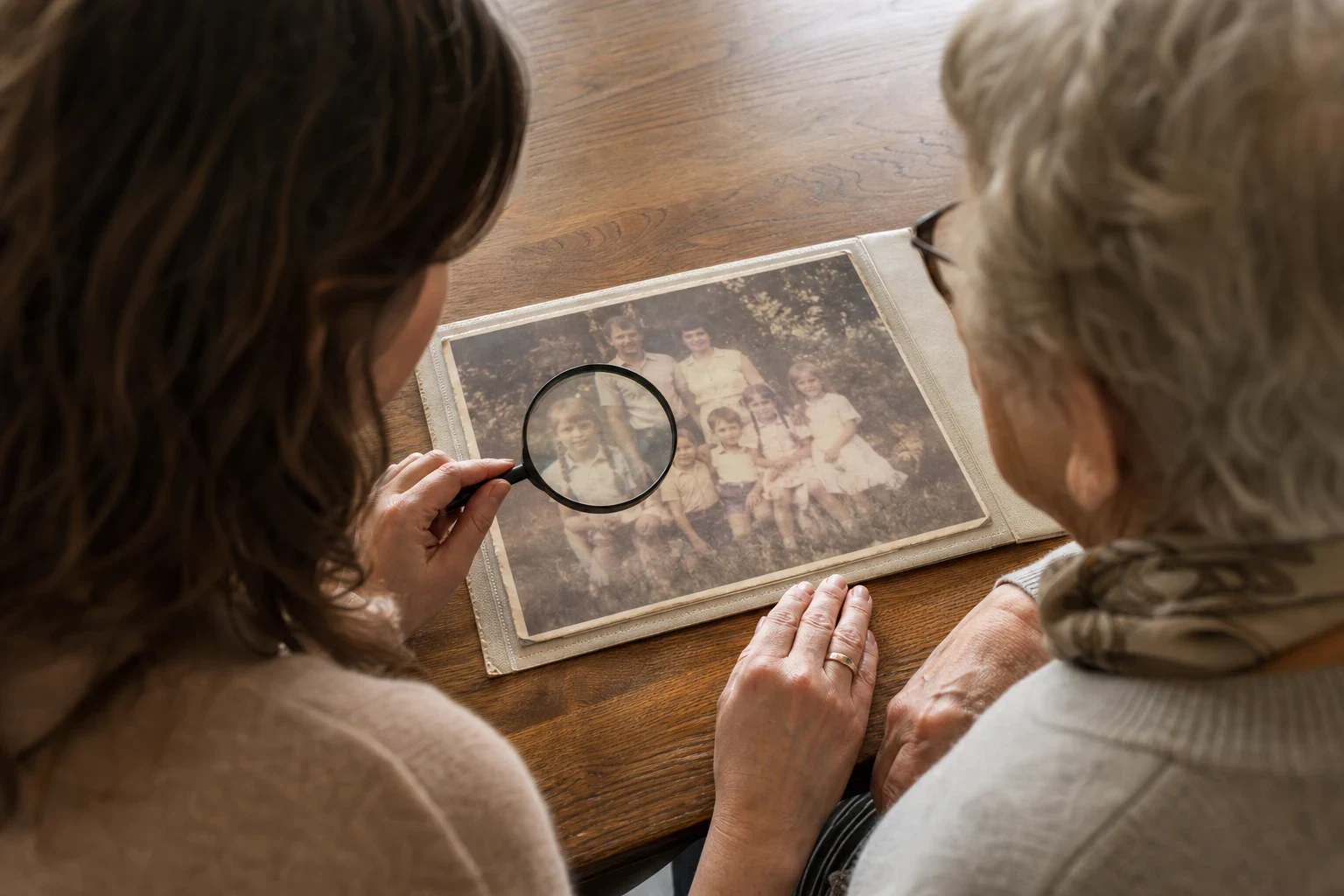
Old family photos are priceless, but time can fade, scratch, or blur them. With a few simple steps and AI, you can revive these memories. Here’s how to fix blurry old photos, from quick fixes to more advanced methods.
Quick Fix: Check the Original Photo Quality
Before trying advanced fixes, see if the original photo’s quality is the issue. Sometimes, the problem is how it was scanned or digitized.
Scan at High Resolution
Got a physical photo? Scan it at a high resolution (at least 300 DPI). Low-resolution scans lose detail, making photos look blurrier than they really are.
Avoid Digital Zoom
Digital zoom can make photo quality worse. If the blurriness comes from a digital copy, check if the original was over-zoomed. Always use the best quality original you can find.
Common Cause: Light and Focus Issues
Blurry photos often have poor lighting or focus problems. Here’s how to fix these issues.
Adjust Brightness and Contrast
A photo might look blurry if it’s too dark or washed out. Tweaking brightness and contrast can bring out hidden details and improve clarity.
Use AI to Correct Focus
AI tools can fix focus issues by enhancing edges and details. If manual tweaks don’t help, AI can often save photos that seem too far gone.
Advanced Fix: AI-Powered Sharpening
For photos needing more help, AI-powered sharpening does a great job. Here’s how to use it.
Upload to Family Pictures AI
Upload your blurry photo to Family Pictures AI. This tool’s made for old and damaged photos, making it ideal for restoration.
Select the Sharpen Option
Pick the sharpen option to let AI enhance the photo’s details. The results can be clearer, bringing back faces and scenes you thought were lost.
Preserving Restored Photos
Once your photo looks its best, keep it that way.
Save in High Quality
Always save the restored photo in the highest quality format, like PNG or TIFF. This keeps the details intact for future use.
Back Up Digitally
Don’t risk losing your restored photos. Back them up digitally, whether in the cloud or on an external drive, so they’re safe for years.
Try Family Pictures AI Today
Ready to revive your old family photos? Sign up for Family Pictures AI and start restoring your memories in just a few clicks. It’s an easy way to keep your family’s history alive for future generations.
Frequently Asked Questions
Can AI really fix blurry old photos?
Yes, AI can improve blurry old photos by sharpening details and fixing focus issues. It might not perform miracles, but it often restores enough clarity to make the photo usable again.
What’s the best way to scan old photos for restoration?
Scan photos at a high resolution (at least 300 DPI) to capture as much detail as possible. Skip digital zoom and use a clean, flat surface to avoid extra blurring.
How does AI sharpen a blurry photo?
AI examines the photo to find edges and details, then enhances them to create a sharper image. It can also guess missing info based on patterns it knows.
Are there any free tools to fix blurry photos?
Some basic photo editors offer free sharpening features, but for better results, specialized AI tools like [Family Pictures AI](/past-images) give more advanced restoration options.
How can I prevent my photos from getting blurry in the future?
Keep photos in a cool, dry place to avoid damage. Digitize them at high resolution and back them up often to prevent loss or fading over time.